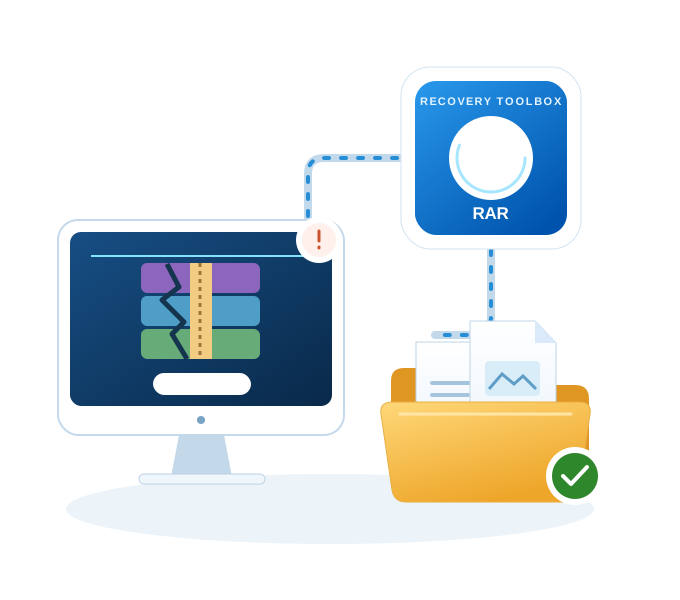
RAR Repair Tool to Recover Corrupted WinRAR (.rar) Archives

Updated: 2026-10-30

Victor Bobrov Written by:

Fix WinRAR Errors: The Archive Is Corrupted, Unknown Method, and Corrupt Header Is Found

Recovery Toolbox for RAR is a dedicated Windows software tool designed to repair corrupted WinRAR archives with the .rar extension and recover inaccessible data. When a file fails to open due to critical WinRAR errors such as The archive is corrupted, Unknown method, or Corrupt header is found, this RAR repair tool scans the damaged archive, extracts intact files along with recoverable file fragments, and saves them separately to your computer or laptop disk. Compatible with all RAR compression variants on Windows, the application provides a safe, automated RAR fixer that restores damaged archives without altering the original source file.

How to Repair Damaged RAR Files and Extract Data on Windows

The instruction for the recovery of corrupted WinRAR archive and extract files from it on Windows PC:

  1. Download Recovery Toolbox for RAR from here: https://rar.recoverytoolbox.com/download/RecoveryToolboxForRARInstall.exe
  2. Install Recovery Toolbox for RAR on your computer
  3. Start Recovery Toolbox for RAR
  4. Selecting a damaged RAR archive
  5. Selecting files and folders what you want to save
  6. Selecting a folder where the recovered information will be saved

Recovery Toolbox’s algorithm for repairing WinRAR archives uses a byte-by-byte scan of the corrupted archive to find compressed file signatures and extract them. Recovery Toolbox for RAR extracts files from a corrupted WinRAR archive by checking the CRC for each file. Depending on the success of the check, the user can see—even in the DEMO version of Recovery Toolbox for RAR how the file will be recovered:

  • Files that will be successfully recovered are marked with a blue icon;
  • Files that will be only partially extracted are marked with a yellow icon;
  • Files that cannot be recovered are marked with a red icon.

When repairing WinRAR archives, the tool restores the folder structure and recovers password-protected archives (the user must enter the password manually). Recovery Toolbox for RAR does not repair or modify the archive itself. The RAR archive recovery tool extracts and saves files from a corrupted WinRAR archive. On the preview page, you can view the folder tree and lists of files successfully identified in the archive, and select only the folders and files you need to save to disk.

WinRAR Recovery Tool

Recovery Toolbox for RAR helps to extract files from corrupted WinRAR archives. Recovery Toolbox for RAR is designed to recover information from corrupted archives of the RAR format. You can use it to completely avoid or at least minimize losses due to compressed data.

Recovery Toolbox for RAR works in the following way:

  1. It scans and analyzes the corrupted archive and extracts all the information it can draw from the WinRAR archive.
  2. Recovery Toolbox for RAR displays a final list of files and folders on the screen.
  3. You can view this list and select only the objects you need to save. Please note that Recovery Toolbox for RAR may recover some files incorrectly, or it may fail to recover some files at all. It depends on how heavily the archive is corrupted.
  4. Recovery Toolbox for RAR saves a selected file on the hard disk.

How to recover the RAR file

Extracted files and folders are saved to the specified location, after which they become available for use. It's also important that the source archive isn't modified in any way, because the RAR recover program only reads data from it.

Recovery Toolbox for RAR offers an array of imbedded features. For example, i supports all existing variants of the RAR compression format, including files created with archiving software versions 1.x, 3.x, 3.x, 4.x and 5.x with different compression rates.

Additionally, Recovery Toolbox for RAR does the following:

  • It recovers information from corrupted password-protected archives in the RAR format. (The customer should type in the password manually.)
  • It recovers information from corrupted files in the RAR format larger than 4GB.
  • It recovers information from archives in the RAR format stored on corrupted media (floppy disks, CDs, DVDs, Zip drives, etc.).
  • RAR Viewer Tool
  • Displays and repairs the contents of damaged WINRAR archives

Ease of use is one of the ways Recovery Toolbox for RAR differs from other software. The interface of the RAR recovery tool is implemented as a step-by-step wizard, and each step requires just one operation. To recover information from a corrupted RAR archive, the file recovery .rar tool does its job with just a few clicks. Anyone can use Recovery Toolbox for RAR, even a person who is new to PCs.

How to extract corrupted RAR files?

Recovery Toolbox for RAR can also be used as a .rar checker or extraction software for corrupt .rar data. You can extract corrupt .rar files with just a few clicks.

By clicking Download or Repair Online, you agree to the Terms of Service and EULA.

Recovery Toolbox for RAR

Free RAR Viewer

Recovery Toolbox for RAR is very convenient to use for viewing the contents of a damaged WinRAR archive. The tool can work as a viewer for RAR files, even if you do not have WinRAR installed. The tool allows you to open and view any RAR files for an unlimited number of times.

Recovery Toolbox for RAR provides a preview of the folder structure and the list of files from the WinRAR archive. The tool opens corrupted RAR files for viewing. It is free for an unlimited number of times.

Free RAR Viewer
How to open corrupted RAR file for Free

Recovery Toolbox for RAR allows you to open a damaged WinRAR file for free. After opening, it displays a list of files and folder structure from a damaged RAR archive on the preview page.

How to Restore a WinRAR Archive
How to restore a WinRAR archive

To restore a file from a damaged WinRAR archive, you can use the last archive backup or return to the previous stable copy of the *.rar file, or try to use Recovery Toolbox for RAR. With a very high probability, Recovery Toolbox for RAR can restore files from the .rar archive to its original state before they were damaged. To verify this statement, it is necessary to:

  1. Download, install, and run the DEMO version of Recovery Toolbox for RAR.
  2. Select a damaged .rar archive.
  3. Run the analysis of the damaged RAR file.
  4. Review which files and folders are available for full recovery on the preview page.
  5. Select a folder to save restored files.
  6. Save files restored from the archive to disk—available in the full version.
How to fix WinRAR archive

If you need to fix a damaged WinRAR archive, then the full version of Recovery Toolbox for RAR will allow you to do this in a few simple steps. Revision of RAR archives occurs by extracting and saving files from the damaged .rar archive to disk. The correction of the RAR file does not require the installed WinRAR archiver. The tool doesn't fix or modify the existing RAR file. All fixed files are saving in separate files to disk. Correction of the RAR file doesn't require any specialized knowledge in IT; the qualifications of a regular Windows user are sufficient.

How to Fix WinRAR Archive

Requirements:

  • Windows 98/Me/2000/XP/Vista/7/8/10/11 or Windows Server 2003/2008/2012/2016 and above
Screenshots:
download recovery software for damaged rar

Selecting a damaged RAR archive

archive winrar recovery software

Viewing information recovered from the damaged RAR archive

fix damaged rar archives

Selecting a folder where the recovered information will be saved

extract files from winrar

Viewing the results of saving the recovered information

Errors:

Recovery Toolbox for RAR helps fix the following errors:

  • CRC failed in file name. The file is corrupt.
  • Packed data CRC failed in volume name. The volume is corrupt.
  • Unknown method in filename.
  • Invalid or corrupt authenticity information.
  • CRC error: Unable to extract RAR files and appearing a message saying mismatch in size.
  • Error while inflating RAR file: Database and data store files were not successfully extracted from RAR file. Error inflating oversubscribed dynamic bit lengths tree.
  • Worm infection: Unable to share RAR files over a network and shows error.
  • Unable to extract downloaded files from internet, it exhibits error crc failed in filename.
  • Improper compression of the files in RAR archives: To compress large sized files on system converted them into RAR in order to save space. During this process obstruction hits and the compressing process is unfinished and causes inaccessibility.
How it Works:
Step 1

Download software from website.

Step 2
software winrar recovery download

Start Install software:

  • Press on downloaded installation file in browser
  • Select a downloaded installation file in Windows Explorer and press Enter or double click on it
Step 3
winrar archive fix tool

Please confirm warning message:

Step 4
how to fix damaged WinRAR file

Run installation wizard:

Step 5
winrar archives recovery software download

Run program:

  • Double click on icon on desktop:

    or

  • Select from main menu: Start | Programs | Recovery Toolbox for RAR | Recovery Toolbox for RAR
Step 6
winrar repair damaged archive

Please select a damaged RAR file on first page of repair wizard in Recovery Toolbox for RAR:

Step 7
.rar repair utility

Press Next button:

Step 8
archive recovery winrar

The program displays a folder tree and a list of files in each folder. Select the folders and/or files you want to keep from the damaged WinRAR archive.

Step 9
fix winrar archive

Press Next button:

Step 10
repair the rar archive

Select path to save a recovered data:

Step 11
winrar recovery tool

On last page shows a detailed log of recovery process:

By clicking Download or Repair Online, you agree to the Terms of Service and EULA.

Recovery Toolbox for RAR

Video:
Online help:
rar repair

1. Selecting a damaged RAR archive

Recovery Toolbox for RAR can process RAR files of different formats with different compression level created with different versions of the archive. It can be regular archives (the ones with .rar extension) or self-unpacking archives (that have .exe extension). Enter the file location in the Source file name box. There are three ways to do it:

  • Typing a file name in the box. You should also type the full path to the source file
  • Select a file name from the list that appears when you click the button. The list contains all files that have been scanned with Recovery Toolbox for RAR
  • Browse for the necessary file using Windows Explorer (click to open the Explorer)

Click Next to continue.

2. Scanning, analyzing and recovering information from the damaged RAR archive

When you proceed to this step, you'll see a message box saying Do you wish to start recovery process?. Click Yes to start the recovery process. The program will start scanning the damaged file, analyzing it and recovering information from the file. The recovery process will be displayed on a progress bar.

repair rar file
rar repair tool

3. Viewing information recovered from the damaged RAR archive

After scanning the damaged archive, the program will show all data it could recover. To display this information, it uses a window that looks like a Windows Explorer window. The left pane contains a folder tree showing folders found in the archive, and the right pane displays the contents of the selected folder. The contents are shown as a table that has the following columns: Name, Size compressed, Size uncompressed, Header offset, File offset, Error hints, CRC32.

To make the work more convenient, the program marks all files in the table with exclamation marks of different color that show if recovery is possible:

  • A blue exclamation (!) mark means that the file will be recovered.
  • A yellow exclamation mark (!) means that the file can be recovered only partially.
  • A red exclamation mark (!) shows that the file can't be recovered.

It's possible to choose certain files and folders to be recovered. To do it, you should select the checkboxes near them. There are three ways to perform the selection:

  • Select all the necessary files and folders one by one
  • Click Check All. All files and folders will be selected.
  • Click Check Good. The program will select files and folders it can recover correctly.

You can clear the selected checkboxes manually or use the Uncheck All button. Click it to clear all checkboxes.

When viewing information recovered from a damaged RAR archive, the user can make sure the program has recovered the necessary data. It's also a test of Recovery Toolbox for RAR capability that proves that the program can recover the possible maximum amount of data.

Click Next to continue.

4. Selecting a folder where the recovered information will be saved

Specify a folder where the information recovered on the previous step will be saved. By default the program suggests a new folder with a full name consisting of the source folder path and source file name with an ending _rar_repaired. You can select another folder, though. There are three ways to do it:

  • Type folder name manually. Specify the full path to the folder.
  • Select a folder from the list that appears when you click the button. The list contains all folders Recovery Toolbox for RAR ever used to save information.
  • Browse for the folder using a standard Windows dialog box that opens when you click the button.

In the window you will also see how much space you need to save the information and the amount of free space on the selected disk.

Click Next to continue.

winrar repair
archive repair tool

5. Saving the recovered information

On this step, the process of saving information is launched. The progress of saving is shown on an indicator that displays the current state of the process. If there is already a file or folder with such name in the specified folder, the program will ask you whether the object should be replaced or skipped.

6. Viewing the results of saving the recovered information

After the recovered information is saved, Recovery Toolbox for RAR will show a report describing the result of this process.

rar file repair
Note:

Only a registered version of Recovery Toolbox for RAR can save data recovered from a damaged RAR archive. You can register the program by purchasing the registration key on the Buy page.

By clicking Download or Repair Online, you agree to the Terms of Service and EULA.

Recovery Toolbox for RAR

Buying Recovery Toolbox for RAR:
PayPro Global
Noventiq

Personal License

for personal use for noncommercial purposes

PayPro Global $25
Noventiq $25

Business License

for legal use in enterprise, commercial and governmental environments

PayPro Global $39
Noventiq $39

Site License

for using on several computers of the customer (up to 100 electronic devices) in one building or distributed between several buildings

PayPro Global $49
Noventiq $49
  • An email with a registration code and instructions for activating this code will be sent to the user immediately after the payment confirmation.
  • An email with a registration code will be sent from several different mail servers to prevent messages from appearing in SPAM filters. Accordingly, a possible duplication of registration letters received in the user's mailbox.
  • To activate the registration code, you need to run the application in Windows under a user with Administrator rights.
  • The number of Personal, Business or Site licenses activated simultaneously must not exceed the number of purchased licenses.
  • We sell software via registration services PayPro Global and Noventiq. That is why not Recovery Toolbox, but the corresponding company will be specified in the payment documents.

The purchased registration key is valid for all 3.x versions of Recovery Toolbox for RAR.

rar repair
The benefits of buying the full version of Recovery Toolbox for RAR

They allowing you to repair corrupted WinRAR archive files (identified by the .rar extension), compared to the free version.

Enhanced Repair Capabilities:

  • Deeper Corruption Repair: The free version might have limitations on how complex the corruption it can address. The full version utilizes more advanced repair algorithms, increasing the chances of salvaging the maximum data possible from your corrupted archive.
  • More Complete Archive Recovery: The free version might offer limited. The full version may allow recovery of various crucial elements, including:
    1. File Structure: Rebuilds the folder and subfolder structure within the archive, ensuring your files are organized as intended.
    2. Compressed Data: Restores the compressed data within the archive, potentially recovering files in their original format (e.g., documents, images, videos).
    3. Corrupted Filenames: Repairs corrupted filenames within the archive, making them recognizable and accessible again.

Usability and Functionality:

  • RAR Archive Preview: The full version might offer a RAR archive preview functionality. It lets you see a list of recoverable files within the archive before saving, allowing you to prioritize what needs to be recovered.
  • Selective Recovery: The free version might offer limited recovery options. The full version might allow you to choose specific files or folders to recover from the archive, focusing on critical data.
repair rar file
rar repair tool

Additional Considerations:

  • Technical Support: The full version might come with access to technical support from the software developer. It can be invaluable if you encounter issues during the repair process or have questions about software use.
  • Free Updates: Purchasing the full version might entitle you to receive free updates for a specific period. These updates can include bug fixes, compatibility improvements with newer versions of WinRAR, and potentially even enhanced repair capabilities.

While the free DEMO version of Recovery Toolbox for RAR can analyze corrupt WinRAR archives and potentially show you a list of recoverable files, its most significant limitation lies in its inability to save the recovered data. Here's how the full paid version bridges that gap:

Save Recovered Files from WinRAR Archives:

  • The Crucial Step: The free DEMO allows you to analyze the corrupt archive and preview a list of files that could be recovered. However, the full version grants the ability to save these recovered files. It allows you to access and utilize the valuable data extracted from the corrupted archive.
  • Preserves File Integrity: The full version might ensure the recovered files retain their original integrity, including:
    1. File Formats: Preserve the original file formats (e.g., documents as .docx, images as .jpg) for seamless integration into your existing workflow.
    2. Metadata: Potentially restores metadata associated with the files, such as creation dates, modification times, or author information.
winrar repair
archive repair tool

Benefits of Saving Recovered Files:

  • Data Accessibility: By saving the recovered files, you regain access to the valuable information stored within the corrupted archive.
  • Further Editing and Use: Once saved, you can edit, manipulate, and utilize the recovered files within their respective applications.
  • Peace of Mind: Knowing you can recover and save your data offers peace of mind, especially when dealing with critical information stored in WinRAR archives.

Additional Considerations:

Selective Recovery Still Valuable: Even with the ability to save the entire archive, the full version's potential for selective recovery (mentioned previously) remains valuable. You can save only specific files or folders from the archive, focusing on the critical data you need.

Remember:
  1. While the free DEMO provides valuable insight into the potential for recovery, the full version allows you to utilize the recovered data by saving the extracted files.
  2. You can decide if the full version's saving capabilities justify the purchase by evaluating the severity of your archive corruption and the importance of the data you need to recover.
Resources:

Real customer reviews from TrustPilot

Questions and Answers: RAR Archive Recovery

Recover photos from a RAR interrupted by battery failure.

Question: I use WinRAR 6.24 on my Windows 11 23H2 laptop for ZIP and RAR backups, and the battery died while it was creating a RAR of vacation photos. After charging it, I received 'CRC failed in file name. The file is corrupt.' while extracting several pictures, although their names still appear in the archive. Can I recover a corrupted ZIP or RAR archive in WinRAR after an interruption like this, or should I use a separate tool to extract the photos from this RAR?

Answer: If you cannot recover a corrupted ZIP or RAR archive in WinRAR, identify the format before choosing a separate recovery program. Your file is a RAR, so Recovery Toolbox for RAR can extract any surviving contents; it cannot repair ZIP archives. The battery failure may have interrupted compressed data or final archive records. Download, install, and launch Recovery Toolbox for RAR, then select a working copy of the damaged .rar on the first page and start automatic analysis. In the preview, select only blue-marked files and folders, or use Check good. With the licensed full version, choose a new output folder on healthy storage and click Next to save the selection. Review the saved results on the final page, then open the recovered photographs at full size. Missing archive bytes cannot be recreated, so that some pictures may remain unavailable.

Retrieve project files after an unexpected Windows restart.

Question: I left WinRAR 6.23 compressing a client project on my Windows 10 22H2 desktop overnight, and Windows Update forced a restart before it finished. The RAR opens, but extraction stops halfway through the drawings, and the original project files are no longer all in one place. Can I repair a RAR file online after an interrupted compression job, or is there a local way to retrieve readable drawings while preserving this archive for another attempt?

Answer: An unexpected restart can leave the last compressed blocks or closing records unwritten. You don't need to repair a RAR file online to try to recover the drawings: Recovery Toolbox for RAR runs locally on Windows. Keep the damaged original and check whether an intact project backup is available. Download, install, and launch the program, browse to a working copy of the damaged .rar on its first page, and start automatic analysis. Review the preview and choose only blue-marked files or folders, using Check good if appropriate. In the licensed full version, specify a new destination folder on a healthy drive and press Next to save them. Examine the saved results on the final page, then open the recovered drawings in their usual application. Check their revision numbers before returning them to the client project.

Recover research data after a blue screen during compression.

Question: My Windows 11 24H2 workstation blue-screened while WinRAR 6.24 was compressing CSV exports and microscope images from a research project. After rebooting, I can extract a few small documents, but a large image triggers an error and stops the batch. Could a RAR repair tool retrieve the surviving measurements and photographs from this interrupted archive, and how can I save them separately without overwriting the RAR or the source files that are still on the workstation?

Answer: A blue screen during compression may leave some entries complete and others incomplete. A RAR repair tool can attempt to extract surviving content, but it cannot replace measurements that were never written. Once the workstation is stable, download, install, and launch Recovery Toolbox for RAR. Select a working copy of the damaged .rar on the first page and start automatic analysis. Use the preview to choose only blue-marked files and folders, or select Check good. The licensed full version lets you choose a new output folder on healthy storage and click Next to save the selected files. On the final page, review which files were saved and open the recovered tables and images. Compare the CSV rows with surviving lab records before using the measurements in calculations.

Extract surviving invoices after WinRAR was terminated.

Question: I was adding scanned invoices with WinRAR 6.23 on a Windows 10 22H2 laptop when an antivirus alert appeared, and the program became unresponsive. Our IT team later confirmed a false positive, but I had already ended the WinRAR task, and several invoices now fail to extract. Would an online WinRAR repair tool help with this interrupted update, or can I recover readable PDFs locally without treating the antivirus alert itself as evidence that the archive was damaged?

Answer: Terminating WinRAR during an update can leave older records alongside partially rewritten content. This procedure doesn't require an online WinRAR repair tool; it uses Recovery Toolbox for RAR installed on Windows. After IT has addressed the false positive, preserve the reviewed archive and make a working copy. Download, install, and launch Recovery Toolbox for RAR, choose the damaged .rar copy on the first page, and start automatic analysis. In the preview, select only blue-marked files or folders, or click Check good. Using the licensed full version, set a new output folder on healthy storage and click Next to save. Review the saved results on the final page, then open the recovered invoice PDFs. Check their page counts, invoice numbers, and amounts before using them for payment or reconciliation.

Recover older documents after an interrupted archive update.

Question: I opened a department RAR kept for several years in WinRAR 6.24 on my Windows 11 23H2 desktop, replaced two spreadsheets, and deleted an outdated subfolder. The update stalled, and after I cancelled it, opening the archive showed 'Invalid or corrupt authenticity information,' while several older contracts would not extract. Would online RAR recovery be suitable for this failed update, or should I use a local program to retrieve readable contracts without making further changes inside the archive?

Answer: An interrupted update may affect older entries as well as the files being replaced, because archive content can be rewritten. The authenticity message does not establish which contracts still have readable document data. A local extraction attempt is an alternative to online RAR recovery, particularly when the archive contains internal contracts. Download, install, and launch Recovery Toolbox for RAR, select a separate working copy of the damaged .rar on the first page, and begin automatic analysis. Inspect the preview and choose only blue-marked files and folders, or use Check Good. With the licensed full version, choose a new healthy output folder and click Next to save your selections. Review the saved results on the final page, then validate the recovered contracts and worksheets individually. Extraction cannot reverse deliberate deletions or guarantee restoration of overwritten spreadsheet versions.

Check compatibility before recovering an interrupted repacked archive.

Question: I used WinRAR 6.24 on my Windows 11 23H2 laptop to make a differently compressed copy of a design archive, but the repacking job stopped unexpectedly. On a Windows 10 22H2 desktop running WinRAR 5.91, extraction reports 'Unknown method in filename.' for one entry while other files remain visible. Does this WinRAR unknown method error mean the reader is incompatible, or could the interrupted repack have damaged the copy, and how can I retrieve the usable design files?

Answer: A WinRAR unknown method error can indicate reader or compression-method incompatibility, so it is not proof of corruption. First, retry a working copy with a compatible, updated WinRAR. If extraction still fails, the interrupted repack is a reason to attempt recovery from the damaged copy. Download, install, and launch Recovery Toolbox for RAR on Windows, select the working .rar copy on its first page, and start automatic analysis. In the preview, choose only blue-marked files or folders, or use Check good. In the licensed full version, pick a new output folder on healthy storage and click Next to save the selection. Read the saved results on the final page, then open recovered drawings and reference images to assess them. This extracts available content rather than finishing the original repacking operation.

Salvage a backup interrupted by an external drive disconnect.

Question: I created a family backup directly on an external HDD with WinRAR 6.23 on my Windows 10 22H2 desktop, and the USB connection dropped when someone bumped the cable. The drive reconnects now, but the RAR stops extracting near the end, leaving several videos unavailable, and the original recordings have already been moved. Can I fix a corrupted archive in WinRAR, or at least extract its readable files onto another drive without writing more data to the questionable external HDD?

Answer: A disconnected destination can leave part of an archive unwritten even though its filename remains visible. If you cannot fix a corrupted archive in WinRAR, Recovery Toolbox for RAR lets you recover individual files and salvage what's available. Use a stable connection to copy the RAR onto healthy local storage, retaining the external original. Download, install, and launch Recovery Toolbox for RAR, select that damaged .rar working copy on the first page, and start automatic analysis. Review the preview and choose only blue-marked files and folders, or select Check good. With the licensed full version, choose a new folder on a healthy drive and click Next to save those files. Check the saved results on the final page, then play recovered videos through several sections and open representative photographs. Keep both copies until you have confirmed which family recordings are usable.

Recover a RAR written to an interrupted network share.

Question: I was working through RDP on a Windows 11 23H2 office desktop while WinRAR 6.24 wrote project records directly to a network share. The share connection dropped during the write, and afterwards extraction showed 'Packed data CRC failed in volume name. The volume is corrupt.' If WinRAR reports that this archive is corrupted, how can I recover surviving reports and distinguish an actual network write failure from an RDP display disconnect that would not necessarily stop the archiving job?

Answer: When WinRAR reports that this archive is corrupted, a dropped share connection during writing is one possible explanation for incomplete data. An RDP display disconnect alone need not interrupt WinRAR, so the recorded share write failure matters here. Copy the available archive to healthy local storage before beginning recovery. Download, install, and launch Recovery Toolbox for RAR, select that damaged .rar working copy on the first page, and start automatic analysis. In the preview, select only blue-marked files and folders, or use Check good. In the licensed full version, choose a new healthy output folder and click Next to save the selection. Review the saved results on the final page, then open recovered reports and check their tables and attachments. Data that never reached the share cannot be recreated by extracting the surviving entries.

Retrieve usable files from a RAR cut short by disk capacity.

Question: I used WinRAR 6.24 on my Windows 11 24H2 laptop to compress a semester's lecture recordings onto an almost full external SSD. Windows reported that the destination had no free space, and the remaining RAR lists many lectures but will not extract the final group. Is corrupted RAR file repair likely to retrieve any complete recordings from this interrupted job, and how can I save them to a different drive without filling the original destination again?

Answer: The chances of successful corrupted RAR file repair depend on which compressed blocks reached the destination before it filled up. Clearing space later does not automatically complete the archive that was left behind. Preserve the RAR and prepare healthy storage with room for a working copy and extracted recordings. Download, install, and launch Recovery Toolbox for RAR, select the damaged .rar copy on the first page, and start automatic analysis. From the preview, choose only blue-marked files or folders, or select Check good. With the licensed full version, specify a new output folder on healthy storage and click Next to save them. Review saved results on the final page and play the recovered lectures to check their content and duration. Keep a list of missing sessions so the lecturer can replace them from another source.

Recover an archive update interrupted by a full temporary drive.

Question: I updated a large RAR with WinRAR 6.23 on a Windows 10 22H2 workstation, and the system drive holding my temporary folder filled up during the operation. The archive's own drive still has free space, but one updated entry now gives an unknown-method error while older files extract normally. How can I fix an unknown method error in WinRAR in this situation, and what should I try if extraction still fails with a compatible WinRAR version after the interrupted update?

Answer: Before trying to fix an unknown method error in WinRAR through recovery, test a working copy with a compatible updated reader. If the problem persists, the interrupted update and exhausted temporary space justify checking the archive for recoverable content. Restore adequate free space, then download, install, and launch Recovery Toolbox for RAR. Select the damaged .rar working copy on the first page and start automatic analysis. Preview the findings and choose only blue-marked files or folders, or use Check good. With the licensed full version, choose a new healthy output folder and click Next to save. Review saved results on the final page and verify recovered documents in their normal applications. Keep those documents separate from the RAR so you can compare them with another archive copy later.

Recover reports after a NAS quota stopped archive creation.

Question: I archived monthly accounting reports directly to our NAS with WinRAR 6.24 on my Windows 11 23H2 desktop, and the write stopped even though the NAS dashboard showed free space. Our administrator found that my individual storage quota had been reached, and RAR now extracts only some of the PDFs. How can I fix RAR files left incomplete by a quota limit, or recover the available reports locally while keeping the NAS copy intact for comparison?

Answer: An exhausted user quota can reject archive writes while the NAS still has unused capacity. Raising that quota permits future writes but does not fix RAR files that are already incomplete. For the existing copy, download, install, and launch Recovery Toolbox for RAR on Windows. Place a working copy of the damaged .rar on healthy local storage, select it on the first page, and start automatic analysis. In the preview, select only blue-marked files and folders, or use Check Good. With the licensed full version, set a new output folder on a healthy drive outside the exhausted quota and click Next to save. Review the saved results on the final page and open the recovered PDFs. Check statement dates, page counts, and totals before using these reports for the month's reconciliation.

Recover content when FAT32 limits stopped a large RAR

Question: I created a video RAR with WinRAR 6.23 on my Windows 10 22H2 laptop, saving to a FAT32 USB stick until creation stopped near the filesystem limit. WinRAR now reports a corrupt header, and my support notes describe 'CRC error: Unable to extract RAR files and a message appearing saying mismatch in size,' rather than quoting a standard dialogue. Can I fix a corrupt header error in WinRAR and recover usable videos onto an NTFS drive?

Answer: Fixing a corrupt header error in WinRAR cannot overcome the FAT32 single-file limit: a file of 4 GiB or more cannot be stored there. The failed write may therefore have left some video data outside the incomplete archive. Preserve the RAR, then download, install, and launch Recovery Toolbox for RAR on Windows. Select a working copy of the damaged .rar on the first page and start automatic analysis. Inspect the preview and choose only blue-marked files and folders, or use Check good. In the licensed full version, choose a new folder on a healthy NTFS or other suitable drive and click Next to save. Review saved results on the final page and play the recovered videos to check their length and content. You will receive extracted files, and bytes that were never stored cannot be recovered from this copy.

Recover an incomplete archive after an unhandled write failure.

Question: I used WinRAR 6.24 on a Windows 11 23H2 desktop, and my support notes describe the interrupted job as 'Improper compression of the files in RAR archives: To compress large-sized files on system converted them into RAR to save space. During this process, an obstruction occurs, and the compression process is unfinished and causes inaccessibility.' This describes the incident rather than a literal dialogue; could a RAR fixer retrieve documents after an application left an incomplete archive following a write error?

Answer: A RAR fixer can attempt to extract surviving documents from an incomplete archive left after a mishandled write error. It will not finish the original compression job, so preserve the application logs and avoid rerunning that job over your only copy. Download, install, and launch Recovery Toolbox for RAR on Windows. On the first page, select a separate working copy of the damaged .rar and start automatic analysis. Use the preview to select only blue-marked files or folders, or click Check good. With the licensed full version, choose a new output folder on a healthy drive and click Next to save. Review the saved results on the final page, then open recovered documents and check their text and embedded objects. Keep successful extractions separately while you investigate the write failure and look for another source of any missing documents.

Retrieve readable files after a dropped RAR download.

Question: My internet connection dropped while I downloaded a supplier's RAR on a Windows 10 22H2 laptop, and WinRAR 6.23 cannot extract several manuals. Our help desk notes describe the problem as 'Unable to extract downloaded files from internet; it exhibits error CRC failed in filename.' rather than quoting the exact dialogue. How can I repair a damaged RAR file or extract its intact drawings when the supplier link has expired and I need to keep the partial download unchanged?

Answer: A fresh download is preferable when you need to repair a damaged RAR file after a connection failure, because the partial copy may be missing its final bytes. Ask the supplier to renew the link, but preserve the existing file for a local extraction attempt in the meantime. Download, install, and launch Recovery Toolbox for RAR on Windows. Select a working copy of the damaged .rar on the first page and start automatic analysis. In the preview, choose only blue-marked files and folders, or use Check good. With the licensed full version, choose a new healthy output folder and click Next to save those selections. Check the saved results on the final page, then open recovered manuals and drawings to confirm that relevant pages and details are readable. Compare these files with the replacement download if the supplier provides one.

Recover files from a download stopped when the browser closed.

Question: I accidentally closed my download manager while retrieving a RAR of training materials on a Windows 11 24H2 desktop with WinRAR 6.24. A file with the expected name remains in Downloads, but it is smaller than the advertised size and extraction fails after a few handouts. Can I repair a corrupt RAR file left by an unfinished download, or recover readable slides and exercises from it? In contrast, the expired download link prevents me from getting another complete copy?

Answer: Before trying to repair a corrupt RAR file, keep the remaining download and any partial-download companion file unchanged. Closing the downloader early can leave compressed data missing even when the saved filename looks complete. Make a working copy, then download, install, and launch Recovery Toolbox for RAR. Select that damaged .rar copy on the first page and start automatic analysis. Review its preview and choose only blue-marked files or folders, or select Check good. With the licensed full version, set a new destination folder on healthy storage and click Next to save. On the final page, review saved results and open the recovered slides and exercise documents to check their contents. Identify which exercises are complete before sharing the recovered material with trainees, since a saved file still needs a content check.

Victor G. Bobrov, Senior Software Engineer.

MCSD, MCDBA

Expert in recovering of corrupted WinRAR archives with 20+ years of experience and knowledge.

Customer's reviews and ratings:
Mike 08-17-2026

Good

arturo 06-22-2026

Good website for fulfilling its purpose

musaali 03-05-2026

this app is slow

ashish 09-06-2025

very good experience .sometime it works slow but ,great job.

JT Misal 07-15-2025

ok

Ayush Roy 05-24-2025

this app taking too much time improve the speed of this app

Prajit 05-14-2025

A great, rather beautiful application

Yash 03-20-2025

NICE SOFTWARE

Мишаня 02-21-2025

Scanned three non-working archives (it took a very long time) and after analysis all of them had a clean information field.

SergeGrekov 01-14-2025

Perfect soft!

Murali dhar 12-28-2024

An excellent toolkit to help for recovering the data within no time and very simple to work with.

HAKAN 12-19-2024

PERFECT

Melaxes 11-25-2024

very slow

rnd 10-20-2024

very slow

Max 08-28-2024

Recovery Toolbox is an excellent tool

Pankaj 08-23-2024

In my case problem not solved. 24hrs only few MB recovered. Very slow I feel. I am not saying ie software bad.....

adeeb 08-11-2024

too slowly

Joaquin Salazar 07-22-2024

Excelente recuperador de archivos.
Gracias por su talento

satyam 07-16-2024

nice app, very useful, 2 MB per hour recovery speed its amazing

gdhhshrh 05-30-2024

It recovered my video as much as possible. I think the main goal of this software is to recover to the fullest extent and at least allow the disc-reader to read through the whole file. This is not some magic tool and parts that are too damaged will be replaced with grey color(not fully). It took me incredibly long for 1 GB file(about 2 days) where only about 30-40 seconds were damaged(I was really impressed by the speed of going through not damaged parts-even my reader couldnt read that fast; 90% of the time has gone to recovering that seconds). Overall, I'm happy with the results as I didnt care about the damaged parts, my main goal was to download the file which I couldnt do before. It's the only software I've tried so I cant really tell how good this software has done compared to others

Richard326 12-09-2021

A wonderful program, I already lost all hope to restore the archive, but this utility saved me

san 12-29-2020

best solution

vivek raj 07-23-2019

I need full version of this app because after completation it says you cant save a recovered files in demo mode

DEUSIMPERIOSUS 07-12-2018

Not free.

DAVEFRENCIS 07-12-2018

Software helped me in case corruption of huge .rar archives. I applied first time and it completely get back the information.
Tech support could be better.

JAMESHENRYHEATH 07-12-2018

Very simple. Very Effective!
I'm very happy with investing in this product even if I only use it as a one off. I was very skeptical that this product would not solve the corruption issues I was facing. Like majic the files are fixed to a very good standard. Extremely pleased with the simplicity and effectiveness. 5 Stars from me.

JOHNNY453 07-12-2018

I downloaded this utility to try to fix a corrupt RAR file. Yes, it was a large RAR file, but this program ran and ran for about 5 days and nights steadily... I finally had a list of good files.

Repair Online Download Buy Now
By clicking Repair Online or Download, you agree to the Terms of Service and EULA.